
 By Chloe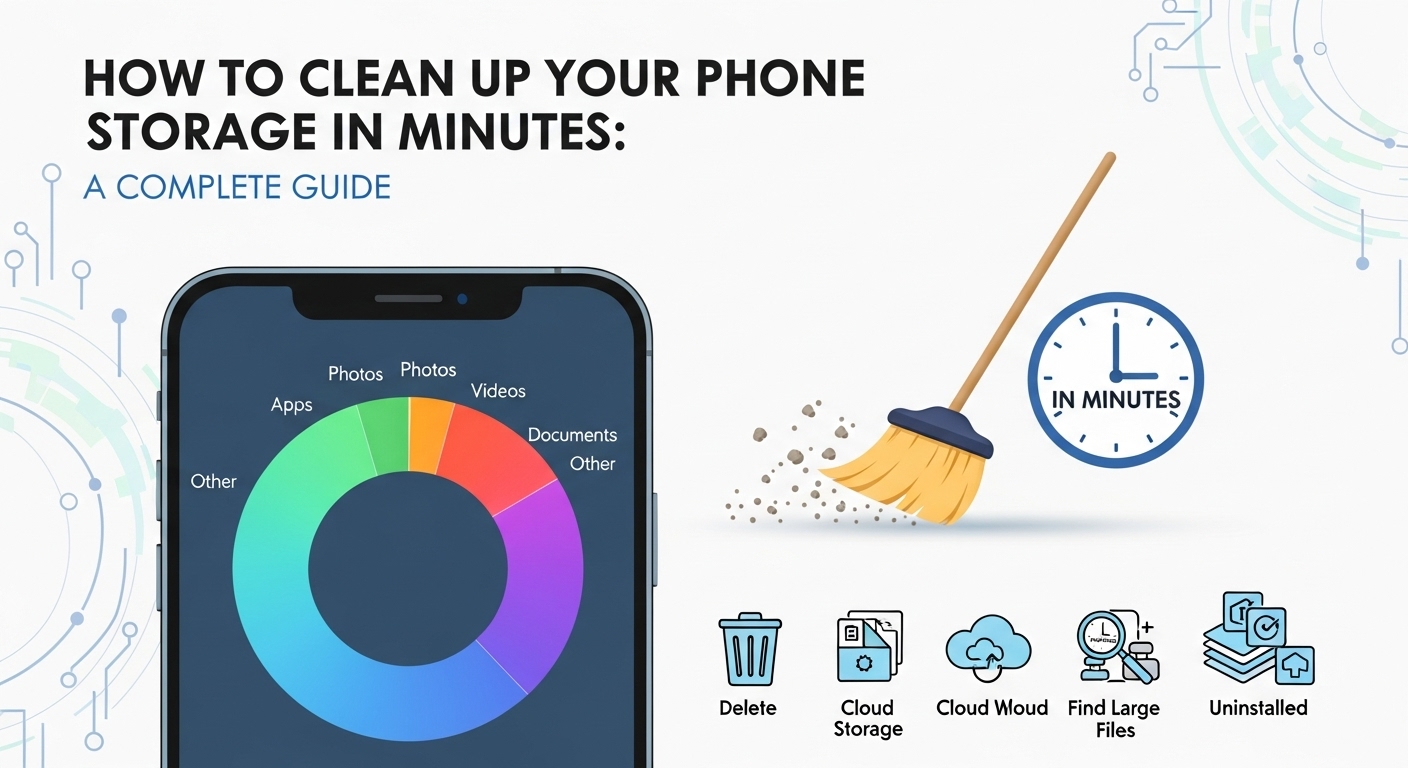
How to Clean Up Your Phone Storage in Minutes? In today’s digital age, smartphones have become essential tools for work, entertainment, and communication. However, one common issue that many smartphone users face is running out of storage space. Whether you’re using an Android phone or an iPhone, it’s easy for your phone storage to get cluttered with apps, photos, videos, cached files, and other data that you don’t need anymore.
This article will provide you with a step-by-step guide on how to clean up your phone storage in minutes. Whether you’re looking to free up some space for a new app, clear up storage for photos, or speed up your phone, these tips and tricks will help you do it quickly and efficiently.
Why You Should Clean Up Your Phone Storage
Before diving into the process, it’s important to understand why cleaning up your phone’s storage is essential. Here are some key reasons why you should regularly manage your phone storage:
Improved Performance: When your phone’s storage is full, it can significantly slow down your device. Clearing up unnecessary files can improve your phone’s performance and make it run faster.
Free Up Space: Running low on storage means you can’t download new apps, save photos, or install updates. Cleaning up your phone ensures you have enough space for what matters most.
Avoid App Crashes: Insufficient storage can lead to apps crashing or not functioning properly. By cleaning up your phone, you ensure your apps run smoothly.
Battery Life Improvement: When your phone is overloaded with unnecessary files, it can drain your battery faster. Freeing up storage can help your battery last longer.
Step 1: Review Your Storage Usage
Before you start deleting files, it’s important to review what’s taking up space on your phone. Both Android and iOS provide easy ways to check your storage usage.
For iPhone:
Go to Settings > General > iPhone Storage.
You’ll see a list of apps and their storage usage. The system will automatically recommend some actions to optimize storage, such as deleting apps or removing large attachments in messages.
For Android:
Go to Settings > Storage.
You’ll see a breakdown of storage by category (apps, images, videos, cached data, etc.). Tap on each category to see more details.
This overview will help you identify which apps, photos, videos, and files are consuming the most storage.
Step 2: Delete Unnecessary Apps
Over time, you may have accumulated apps you no longer use. These apps are taking up valuable storage space, so it’s time to declutter.
How to Delete Apps:
On iPhone: Tap and hold the app you want to delete. Select Remove App and then tap Delete App.
On Android: Tap and hold the app, then select Uninstall or go to Settings > Apps, choose the app, and hit Uninstall.
Look for apps that you haven’t used in a while or those that are redundant. You can always reinstall them later if needed.
Step 3: Clear Cache and Temporary Files
Both iOS and Android devices store cached data to speed up app processes, but over time, these files can accumulate and take up a lot of space. Clearing the cache can give you back significant storage.
For iPhone:
Safari Cache: Go to Settings > Safari > Clear History and Website Data.
App Cache: Unlike Android, iOS doesn’t allow clearing individual app cache directly. But you can offload apps (keep their data but remove the app) via Settings > General > iPhone Storage and tap on the app.
For Android:
Go to Settings > Storage > Cached data and tap to clear.
For specific apps, go to Settings > Apps > Select the app > Storage > Clear Cache.
Clearing your cache regularly can prevent it from eating up unnecessary space.
Step 4: Delete Old Messages and Attachments
Old text messages and their attachments (like photos, videos, and audio files) can occupy a significant amount of storage space. If you’ve been using your phone for a while, you may have thousands of old messages stored on your device.
How to Delete Text Messages:
On iPhone: Open the Messages app, swipe left on conversations you want to delete, and tap Delete. You can also go into individual conversations and delete specific messages or media files.
On Android: Open the Messages app, tap and hold a conversation, and select Delete. You can also delete media files from individual conversations.
Consider deleting old message threads that contain large attachments or that are no longer necessary.
Step 5: Manage Photos and Videos
Photos and videos are often the biggest culprits when it comes to consuming phone storage. Fortunately, there are easy ways to free up space without losing precious memories.
Tips for Managing Photos and Videos:
Use Cloud Storage: Both iOS and Android offer cloud storage services (iCloud for iPhone and Google Photos for Android). Upload your photos and videos to the cloud and delete the local copies from your phone. This way, you still have access to your files but don’t use up phone storage.
Delete Unnecessary Photos/Videos: Go through your photo gallery and remove duplicate or blurry photos. Use the Google Photos app on Android or iCloud Photos on iPhone to help organize and identify low-quality or redundant photos.
Use Compression Apps: If you don’t want to delete any photos or videos, consider compressing them. Apps like Compress Photos & Pictures (iOS) or Photo & Video Compress (Android) can help reduce file size without compromising quality.
Step 6: Offload Music and Podcasts
Music and podcasts can also take up a lot of space. You might not realize how much storage they’re using until you check.
How to Manage Music:
On iPhone: Use Apple Music or Spotify for streaming, which eliminates the need for downloading music. You can also manually delete music from your device by going to Settings > General > iPhone Storage > Music.
On Android: Use Google Play Music or Spotify for streaming, and delete downloaded music files through Settings > Storage > Music.
If you have a large podcast library, consider deleting older episodes that you’ve already listened to.
Step 7: Transfer Files to Your Computer
If you prefer to keep certain files but don’t need them on your phone all the time, consider transferring them to your computer or external storage device. This includes photos, videos, documents, and other important files that aren’t needed frequently.
How to Transfer Files:
For iPhone: Connect your device to a computer and use iTunes or Finder (on macOS Catalina and later) to transfer files.
For Android: Connect your phone to a computer via USB and transfer files directly from the phone to your computer.
This is a great way to free up space without losing any important data.
Step 8: Reset Your Phone (Last Resort)
If your phone is still struggling for space after following all the above steps, a factory reset can give your phone a fresh start. However, be aware that this will erase all data, so it should be used as a last resort.
How to Factory Reset:
On iPhone: Go to Settings > General > Reset > Erase All Content and Settings.
On Android: Go to Settings > System > Reset > Factory Data Reset.
Make sure to back up all important data before performing a reset.
Conclusion
How to Clean Up Your Phone Storage in Minutes? Cleaning up your phone storage doesn’t have to be a daunting task. By following these simple steps, you can quickly free up space, improve your phone’s performance, and ensure that your device runs smoothly. Regularly managing your phone storage will help you avoid issues like slow performance, app crashes, and the inability to download new content.
Now that you know how to clean up your phone storage in minutes, take a few moments to declutter your device today. Your phone will thank you with faster performance and more storage for the things that matter.